Render quality, tone mapping, color grading
RenderQualitySettings holds almost every option the renderer applies each
frame. Pick a preset for the common cases, then override individual fields for
the effects you need. A few options are window-level calls instead, such as
setLinearHdrRenderingEnabled (see Linear HDR rendering); presets do not
change them. Other pages cover narrower subsets of this struct:
Post-process effects for cinematic and screen-space effects, Weather and atmospherics for
atmospheric state, and Lighting, shadows, and HDR/IBL for shadow/light budgets.
Color and gamma semantics
rayrai applies display gamma at the shader/output stage; do not pre-gamma-correct linear colours before passing them in. The convention:
Visuals::setColorand most object/material color factors use linear0..1RGBA.Camera::setBackgroundColorRgb255andRayraiWindow::setBackgroundColorRgb255use legacy0..255RGBA.setBackgroundColoris kept as a compatibility wrapper for the same0..255range.setBackgroundColorLineartakes0..1RGBA and multiplies it by 255, so the two background calls below set the same colour; neither converts between sRGB and linear. The background colour shows only where no sky or environment map is drawn, so it is hidden by the procedural sky unlessproceduralSkyBackgroundEnabledis false.setRenderQualitySettingsandsetRenderQualityPresetreplace it withbackgroundColorRgb255.Texture uploads distinguish color maps and data maps. Use
loadColorTextureWithTilingfor sRGB albedo/emissive maps, andloadDataTextureWithTilingfor normal, metallic-roughness, AO, depth, mask, or other linear data textures.
// Linear object colours (0..1 floats).
sphere->setColor(glm::vec4(0.95f, 0.43f, 0.12f, 1.0f));

// Background: pick the API that matches your colour range.
viewer.setBackgroundColorRgb255({40, 45, 55, 255});           // 0..255 per channel
viewer.setBackgroundColorLinear({0.157f, 0.176f, 0.216f, 1});  // same colour, 0..1

// Texture uploads distinguish colour maps from data maps:
unsigned int albedo = raisin::RayraiWindow::loadColorTextureWithTiling(
    "/path/wood_albedo.png");      // treated as sRGB
unsigned int normal = raisin::RayraiWindow::loadDataTextureWithTiling(
    "/path/wood_normal.png");      // treated as linear data
unsigned int orm = raisin::RayraiWindow::loadDataTextureWithTiling(
    "/path/wood_orm.png");         // treated as linear data
Render-quality controls
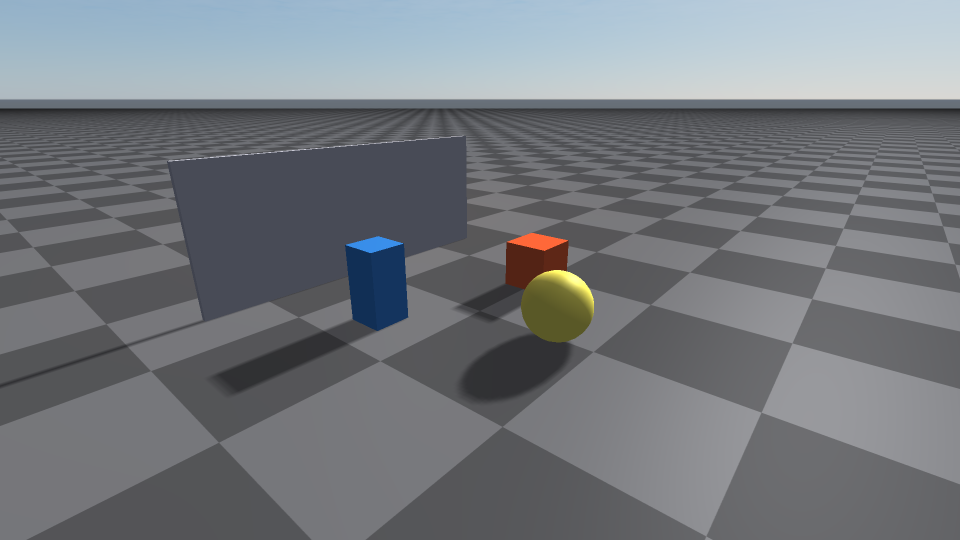
rayrai keeps RL throughput and visual fidelity separate. The Fast preset
keeps reflections, high-fidelity PBR, FXAA, and extra expensive viewer effects
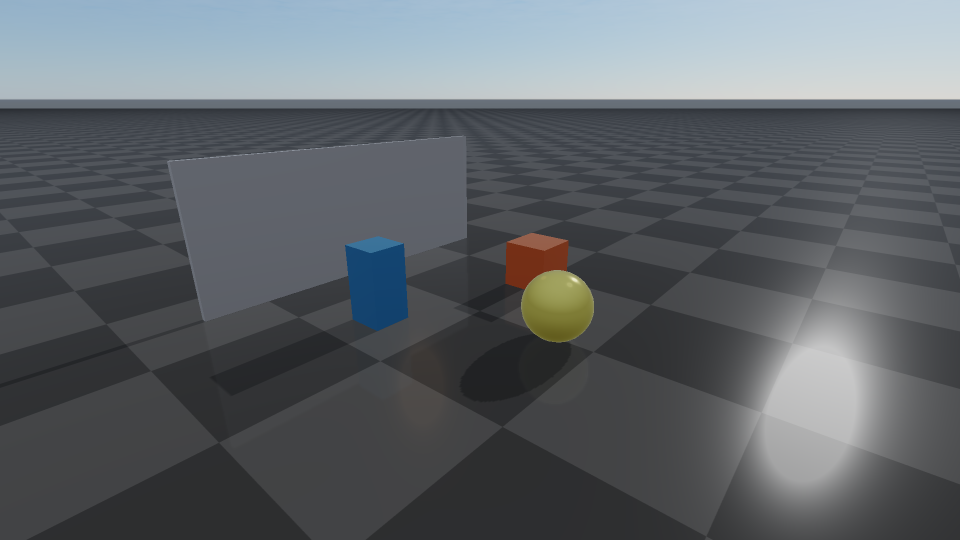
off by default. Balanced uses the PBR + IBL path and a reflective checker
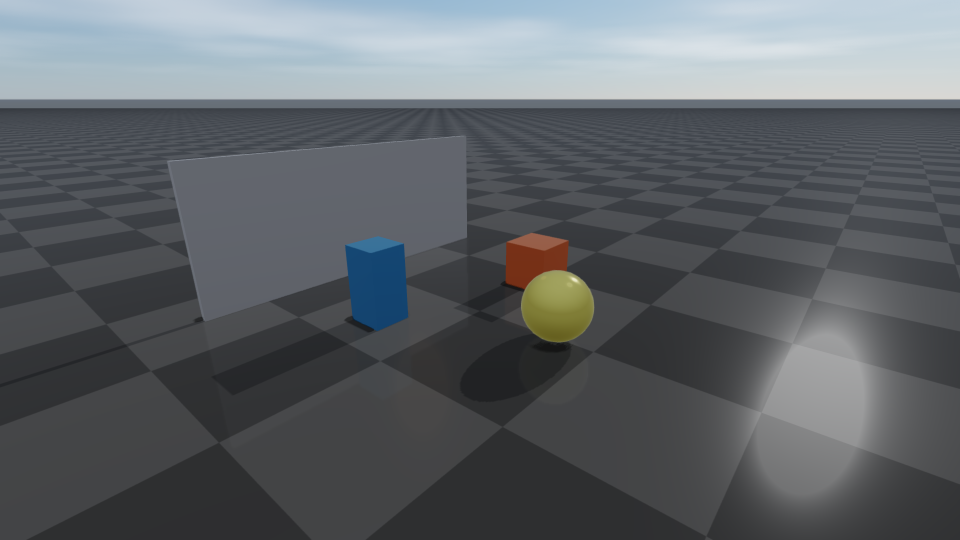
ground, but still leaves the heavier High/Ultra effects off. High and
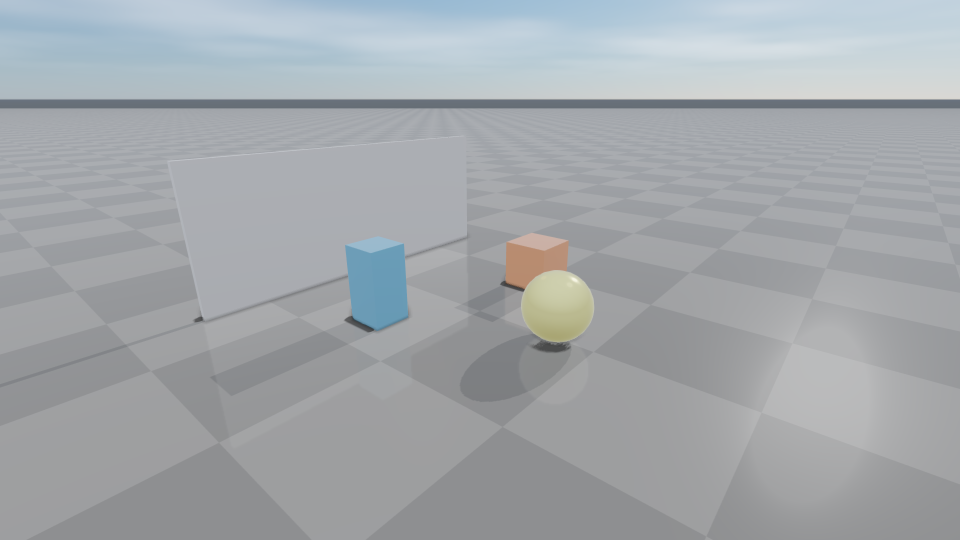
Ultra enable the quality-oriented path, including MSAA, stronger shadow
filtering, FXAA, additional screen-space effects, and depth-of-field
postprocessing. Preset reference lists the main values.
Every preset is tuned so directional shadows are readable out of the box while smooth and metallic materials still receive enough sky/IBL fill. Balanced and High use a bright ambient and environment fill. Ultra uses a lower direct ambient, a slightly lower environment intensity, and a lower exposure with AgX tone mapping, which keeps more contrast. You should not need to tweak ambient/diffuse/shadow values for a readable outdoor scene.
The reflective checker ground is on by default for Balanced, High, and
Ultra (reflectiveGround = true plus the PBR path) and off for Fast.
Heightmap terrain is intentionally excluded from the planar reflective-ground
policy; it uses a rough, non-reflective PBR terrain material even when
reflectiveGround is enabled.
Use presets for common cases:
viewer.setRenderQualityPreset(raisin::RayraiWindow::RenderQualityPreset::Fast);
viewer.setRenderQualityPreset(raisin::RayraiWindow::RenderQualityPreset::Ultra);
Use explicit settings when you need runtime control:
auto quality = raisin::RayraiWindow::defaultRenderQualitySettings(
  raisin::RayraiWindow::RenderQualityPreset::Ultra);
quality.fxaaEnabled = true;
quality.depthOfFieldEnabled = true;
quality.depthOfFieldFocusDistance = 5.0f;
quality.depthOfFieldFocusRange = 8.0f;
quality.depthOfFieldMaxRadius = 1.25f;
quality.reflectiveGround = true;
quality.addViewerFillLights = false;
viewer.setRenderQualitySettings(quality);
setRenderQualityPreset and setRenderQualitySettings rebuild the main
light from the mainLight* and shadow fields and clear all additional lights;
the two viewer fill lights are added back when addViewerFillLights is true.
Apply settings before adding or importing lights. To change a single option on a
lit scene, use a dedicated setter, which keeps lights and materials:
viewer.setDepthPrepassesEnabled(/*opaque=*/true, /*foliageAlpha=*/false);
viewer.setAdditionalLightContributionThreshold(1.0e-4f);
After any explicit change, getRenderQualityPreset() reports
RenderQualityPreset::Custom.
The shipped rayrai examples, including rayrai_pbr_material_grid,
rayrai_quality_lighting, and rayrai_complete_showcase, exercise these
controls in runnable scenes.
Fast |
Balanced |
|---|---|
|
|
High |
Ultra |
|
|
These four images are produced by doc_image_quality_presets in
docs/image_generators/ and are regenerated automatically as part of the
Sphinx build target.
Preset reference
RayraiWindow::defaultRenderQualitySettings(preset) and
RenderQualitySettings::preset(preset) return the settings below. The
presets also tune fields that are not listed, such as shadow bias, AO radius and
bloom parameters.
Setting |
Fast |
Balanced |
High |
Ultra |
|---|---|---|---|---|
Material shading |
simple |
PBR + IBL |
PBR + IBL |
PBR + IBL |
Tone curve, |
none |
ACES, 0.60 |
ACES, 0.55 |
AgX, 0.42 |
|
(no IBL) |
1.30 |
1.35 |
1.20 |
|
(0.38, 0.40, 0.45) |
0.48 |
0.54 |
0.32 |
MSAA samples, alpha-to-coverage |
1, off |
1, off |
2, on |
4, on |
|
2048, 1.25 |
3072, 1.75 |
4096, 1.50 |
6144, 1.75 |
|
off |
off |
on |
on |
|
1 |
1 |
2 |
2 |
Reflective ground |
off |
on |
on |
on |
FXAA, temporal AA |
off, off |
off, off |
on, off |
on, on |
Screen-space AO (samples) |
off |
off |
on (12) |
on (20) |
Depth of field |
off |
off |
on |
on |
Opaque depth prepass |
off |
off |
on |
on |
Screen-space refraction |
off |
off |
on |
on |
|
Texture |
Texture |
Volumetric |
Volumetric |
|
1 |
4 |
8 |
16 |
Foliage wind |
off |
off |
on |
on |
Bloom is off in every preset; its tuning is kept for when you enable it.
Ultra’s temporal AA runs without projection jitter. Custom starts from the
struct defaults with the texture cloud layer enabled.
Sun softness, sky light, and local-light range
These fields keep their struct defaults in every preset:
directionalShadowSoftnessDegrees(default0: plain PCF) gives the main directional light a penumbra that widens with the distance between blocker and receiver. Set it to the light’s angular diameter in degrees; the Sun is about0.53. The blur is at leastshadowPcfRadiusand at mostdirectionalShadowSoftnessMaxRadiusshadow-map texels (default8).setRenderQualitySettingsclamps the angle to[0, 4]and the radius to[1, 16]. Soft shadows take more shadow-map samples than PCF.pbrEnvironmentLightingTint(default white) is the color of the procedural sky light that PBR materials receive when no environment map is set: 0.35 times the tint from above and that color timespbrEnvironmentGroundTintfrom below, scaled bypbrEnvironmentIntensity. It is independent of the visible sky and fog colors;pbrEnvironmentSkyTint,pbrEnvironmentHorizonTintandpbrEnvironmentHorizonStrengthtint only the sky background. Instanced visuals with PBR materials always take their sky light from this term.additionalLightContributionThreshold(default0: every additional light reaches everywhere) gives point, spot and area lights a finite range. The value is a total scene-linear incident-radiance budget shared equally by the active additional lights. Each light fades out between the distance where its incident radiance falls to its share and the distance where it falls to half of it, and objects entirely beyond that range skip the light. Directional lights and lights with an ambient term, a projector texture or no distance attenuation keep an unlimited range. The budget is not a bound on the final pixel error; compare against0at your exposure.
auto quality = viewer.getRenderQualitySettings();
quality.directionalShadowSoftnessDegrees = 0.53f;  // Sun-sized penumbra
quality.pbrEnvironmentLightingTint = glm::vec3(1.0f, 0.98f, 0.95f);
viewer.setRenderQualitySettings(quality);

// Unlike setRenderQualitySettings, this keeps the authored lights.
viewer.setAdditionalLightContributionThreshold(1.0e-4f);
The geometryRefraction* fields control traced refraction for transmissive
materials; see PBR materials.
Tone mapping, exposure, and color grading
The viewer color pipeline is driven by RenderQualitySettings. The tone curve
is applied only when pbrToneMapping is true, and colorMode
(ViewerColorMode) selects it: FastLinear (the default; it currently uses the
same fitted ACES curve as AcesApprox), AcesApprox (fitted ACES),
UnrealPreviewApprox, FilmicApprox, and AgXApprox. To render without a
tone curve, set pbrToneMapping = false. Exposure is controlled by
pbrExposure plus an optional auto-exposure loop (autoExposureEnabled,
autoExposureKey, autoExposureSpeed, autoExposureMinFactor,
autoExposureMaxFactor) that adapts exposure toward a target average luminance
of the displayed frame. White balance and saturation use viewerWhiteBalance
and viewerSaturation.
auto quality = viewer.getRenderQualitySettings();

// Pick the tone curve.
quality.colorMode = raisin::ViewerColorMode::AcesApprox;
quality.pbrToneMapping = true;
quality.pbrExposure = 1.0f;

// Auto-exposure: target mid-gray luma 0.18 at moderate adaptation speed.
quality.autoExposureEnabled = true;
quality.autoExposureKey = 0.18f;
quality.autoExposureSpeed = 0.05f;
quality.autoExposureMinFactor = 0.10f;
quality.autoExposureMaxFactor = 6.0f;

// White balance + saturation tweaks (applied before grading).
quality.viewerWhiteBalance = glm::vec3(1.02f, 1.00f, 0.96f);  // slightly warm
quality.viewerSaturation = 1.05f;

// ASC-CDL grade applied at the end of the post-process chain.
quality.viewerColorGradePreset = raisin::ColorGradePreset::Cinematic;
quality.viewerColorGradeStrength = 0.8f;

viewer.setRenderQualitySettings(quality);
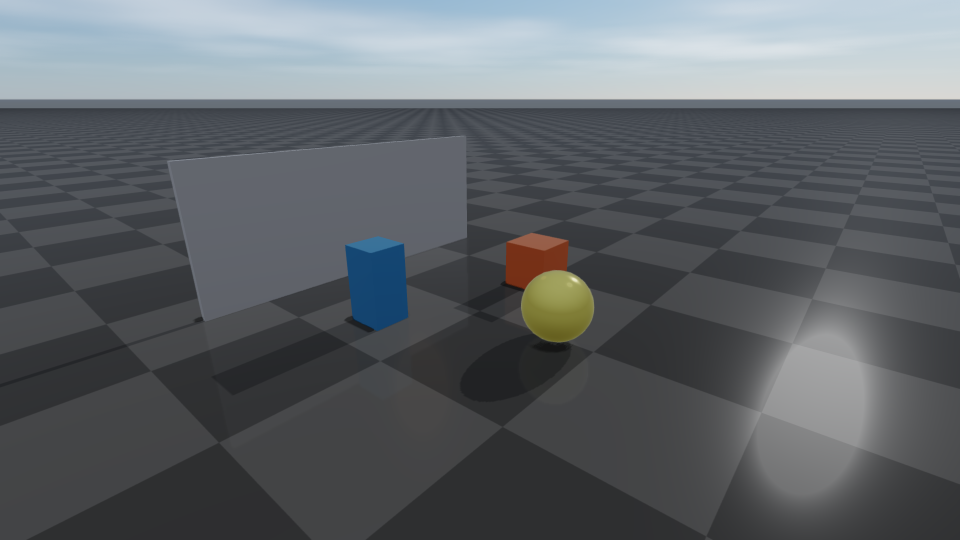
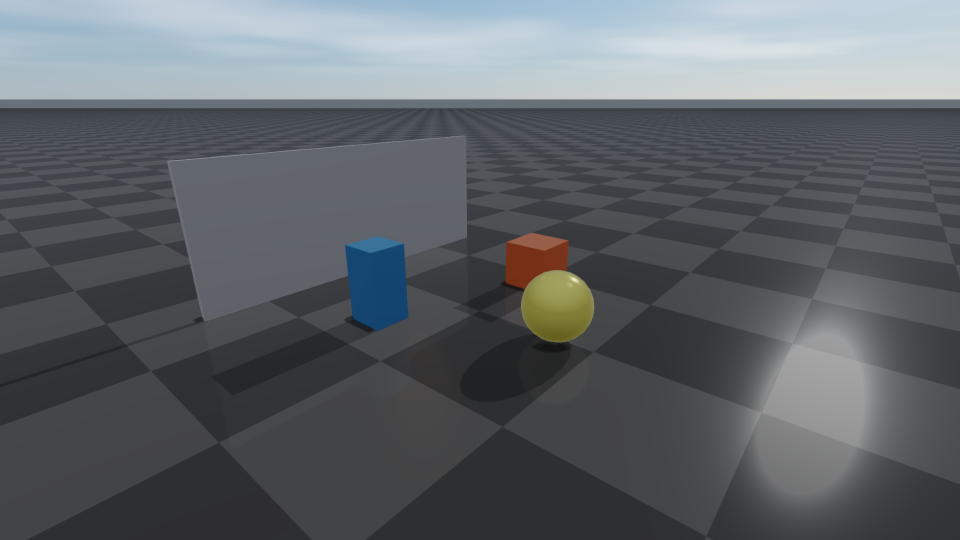
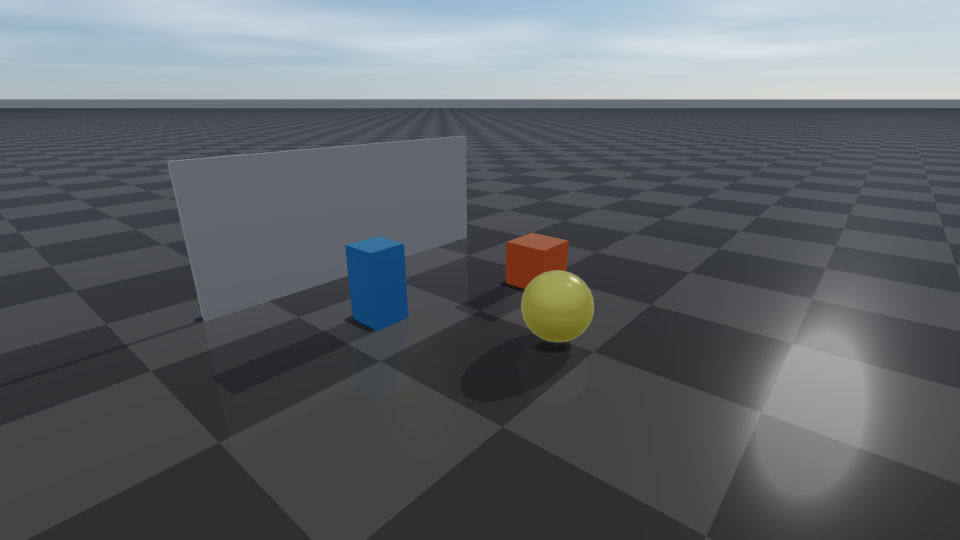
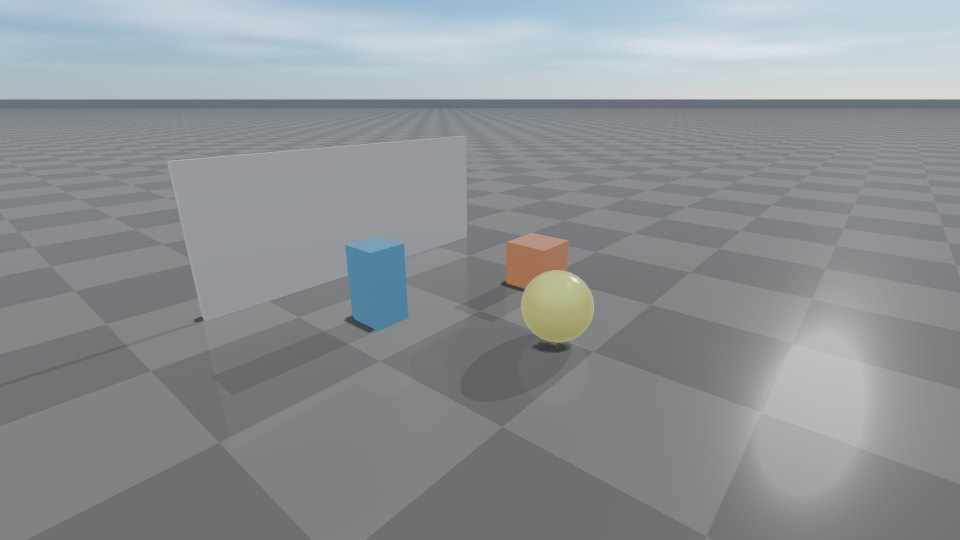
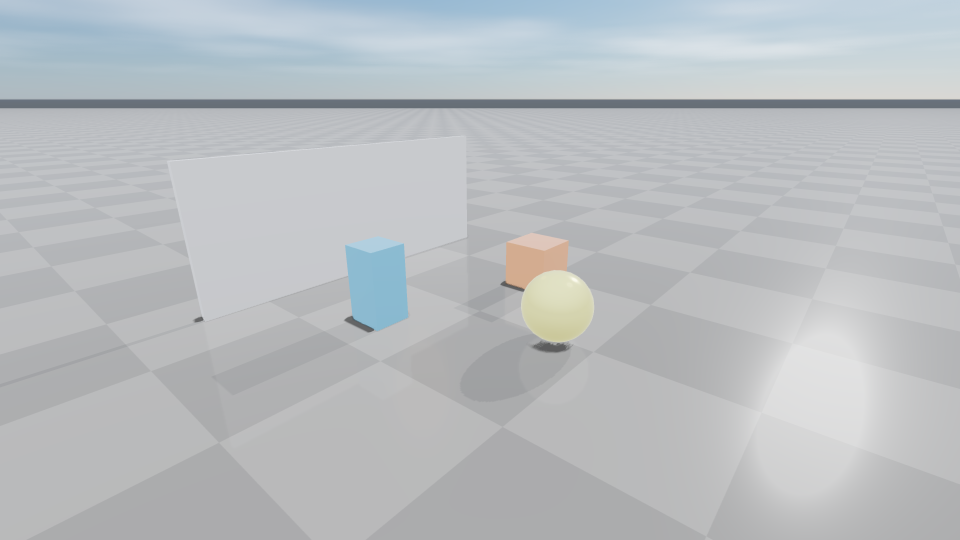
The curves compress highlights differently. AcesApprox is a fitted ACES
filmic curve, and FastLinear currently renders identically to it.
UnrealPreviewApprox is ACES with a slight shadow lift and highlight
desaturation, FilmicApprox is a Hejl/Burgess-Dawson-style filmic curve, and
AgXApprox is an AgX-style log curve that stays neutral and preserves hue (the
Ultra preset uses it):
FastLinear |
ACES |
|---|---|
|
|
UnrealPreview |
Filmic |
|
|
AgX |
|
|
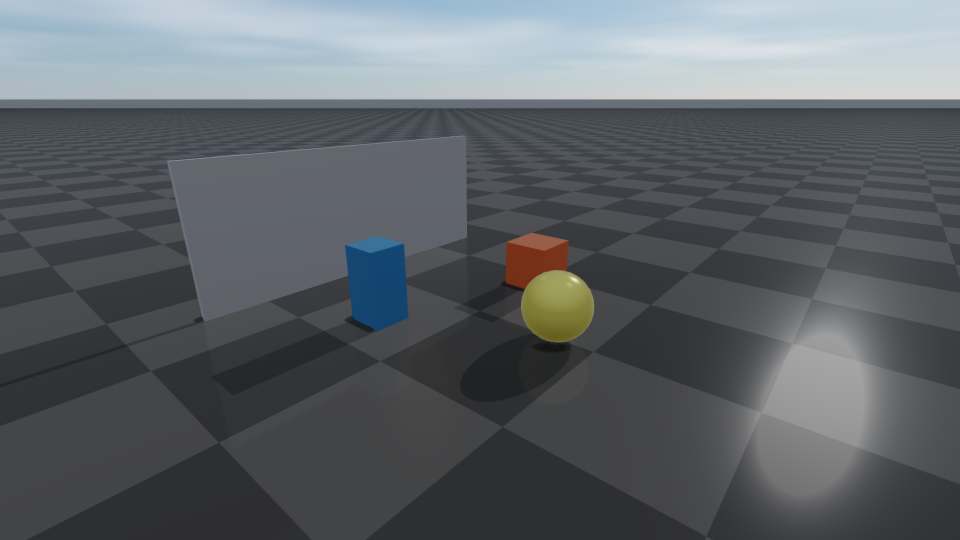
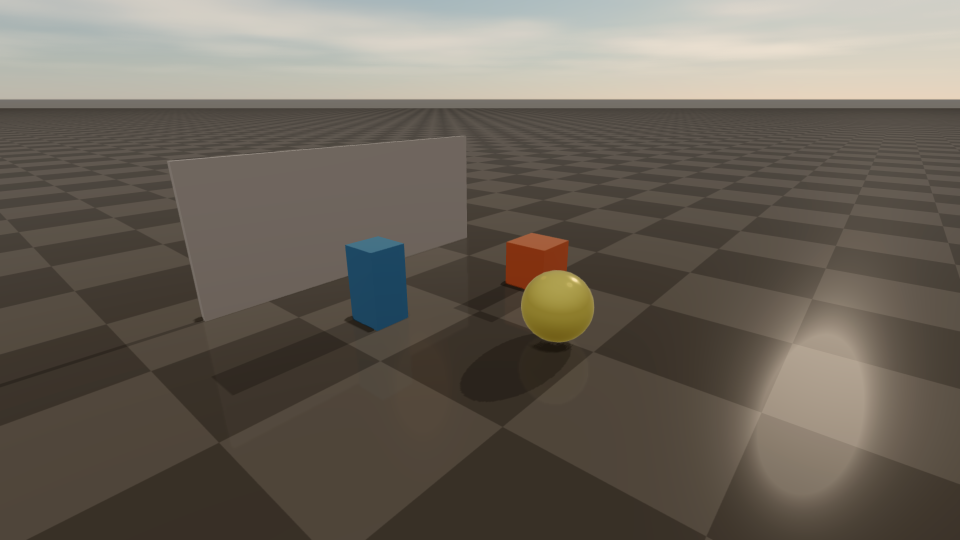
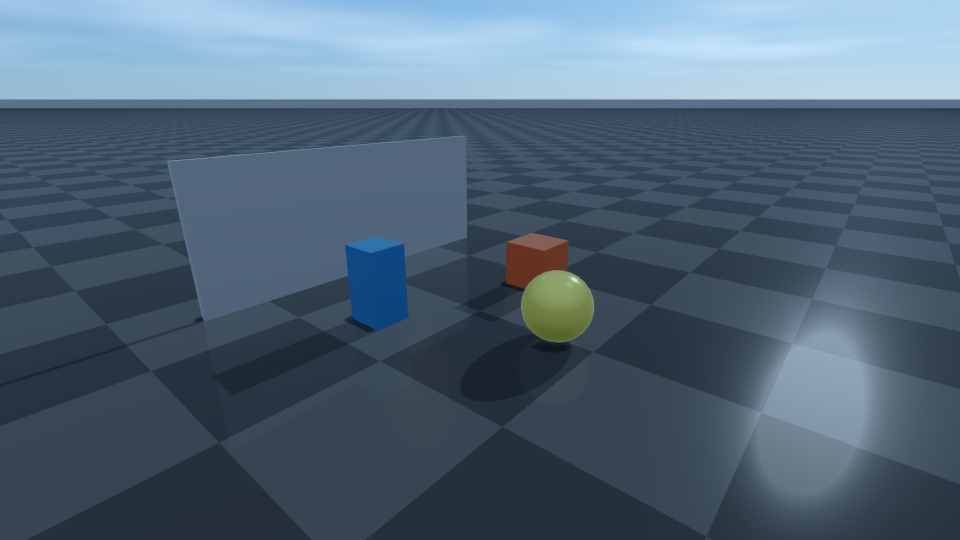
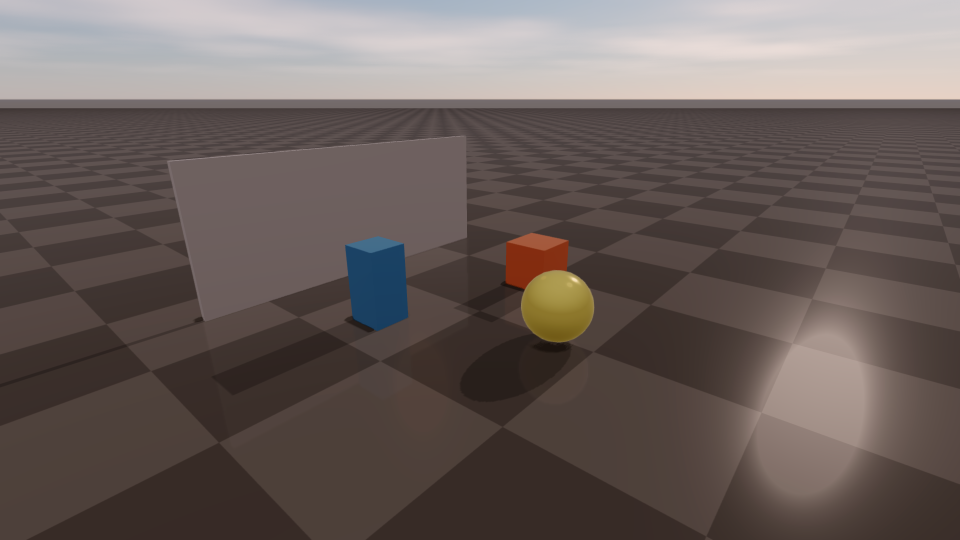
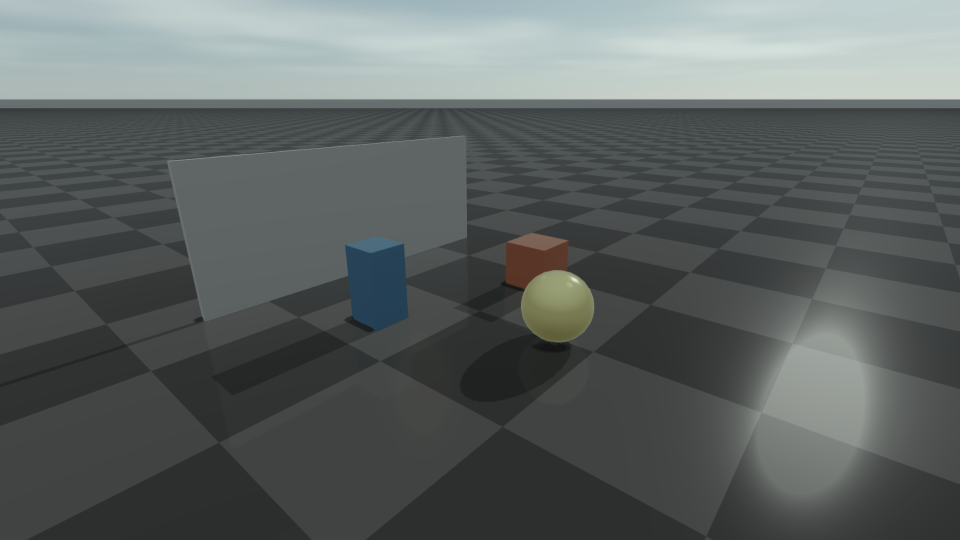
ASC-CDL color grading is applied at the end of the post-process chain. Pick a
preset with viewerColorGradePreset (Neutral, Warm, Cool,
Cinematic, Bleach) and blend it with the ungraded image using
viewerColorGradeStrength. gamma overrides display gamma when needed.
Neutral |
Warm |
|---|---|
|
|
Cool |
Cinematic |
|
|
Bleach |
|
|
The tone-mapping grid is produced by doc_image_tone_mapping and the grade
grid by doc_image_color_grading in docs/image_generators/.
Note
On macOS and on GPUs with 16 or fewer fragment texture units, the post pass supports only depth of field, FXAA, bloom, SSAO, temporal AA, white balance and saturation, so color grading has no effect there. Tone curves and exposure still apply. See Platform support and GPU capability tiers.
For batch capture, the static helpers analyzeRgbaLuminance,
recommendExposure, and smoothExposure (see Exposure, calibration, and
output transforms in Capture, diagnostics, and headless rendering) drive automatic exposure adjustment
without touching renderer state directly.
Linear HDR rendering
setLinearHdrRenderingEnabled(true) keeps scene color linear through MSAA
resolve, fog, bloom and depth of field, then applies exposure (including
auto-exposure), the colorMode curve (when pbrToneMapping is on) and
gamma once in the final post pass. It is off by default. Because it is a window
setting, presets and setRenderQualitySettings leave it unchanged. Temporal AA
with TemporalAaMethod::Reprojected uses this path even when the toggle is off
(see Post-process effects).
In this mode bloom thresholds are compared with scene-linear radiance, and a
post pass runs even when no other post effect is enabled. External renders with
RenderOverrides::postProcess = false or a custom post shader, and frames
with a PBR debug output, keep the regular output. Toggling the mode resets the
temporal-AA history.
viewer.setLinearHdrRenderingEnabled(true);

auto quality = viewer.getRenderQualitySettings();
quality.bloomEnabled = true;
quality.bloomThreshold = 1.3f;  // scene-linear radiance in this mode
viewer.setRenderQualitySettings(quality);
Adaptive quality and texture budgets
For long-running applications and offline pipelines, two helpers convert measured timings or a memory budget into recommended settings without changing the renderer:
The static
RayraiWindow::recommendDynamicQuality(settings, preset,
timings)
sums GPU pass timings fromcaptureViewerPassTimingsorcaptureRenderPassTimingsand returns aDynamicQualityRecommendation. It reports the bottleneck flagsfillRateBound,shadowBoundandpostprocessBound, atargetFrameMs, the proposedrecommendedRenderScale,recommendedUpdateShadowsEveryFrame,recommendedBloomQuality,recommendedScreenSpaceAoSamplesandrecommendedScreenSpaceAoDenoiseEnabled, the completerecommendedSettings,changedand areason. ForHighandUltrait returns the settings unchanged with the reasonquality_preset_preserves_fidelity; passFast,BalancedorCustomto allow changes.The member function
viewer.recommendMaterialTextureBudget(budgetBytes)(0selects a preset-aware default budget) measures material texture memory (materialTextureBytes,overBudget) and proposesrecommendedTextureAnisotropy,recommendedTextureMipLodBias,recommendedPbrEnvironmentMipLodBiasandrecommendedReflectionProbeFilteringEnabledvalues that reduce texture sampling cost, also asrecommendedSettings. It does not unload textures.
Both capture helpers block on GPU timer queries, so measure occasionally rather
than every frame. When the scene contains foliage instanced visuals, they also
append shadow_foliage* and scene_foliage* entries measured in a second
frame; these are parts of the coarse passes, so remove them before calling
recommendDynamicQuality.
// Render the built-in viewer camera once with GPU timer queries.
auto timings = viewer.captureViewerPassTimings(1280, 720);

auto rec = raisin::RayraiWindow::recommendDynamicQuality(
    viewer.getRenderQualitySettings(),
    raisin::RayraiWindow::RenderQualityPreset::Balanced,
    timings);
if (rec.changed) {
  viewer.setRenderQualitySettings(rec.recommendedSettings);
  std::printf("Adaptive: %s\n", rec.reason.c_str());
}

// Texture budget recommendation for a 512 MiB target.
auto budget = viewer.recommendMaterialTextureBudget(
    /*budgetBytes=*/512ull * 1024 * 1024);
if (budget.overBudget && budget.changed) {
  viewer.setRenderQualitySettings(budget.recommendedSettings);
}